eclipse-timekeeper
Timekeeper web client
The account menu’s About dialog reads /api/v1/server to identify the running server
version and commit. Its details distinguish immutable build time, explicitly
recorded deployment time and process-start time. Information refreshes after
long polls and manual refreshes, including during rolling updates. Missing
deployment metadata is shown as Not recorded. The Docker/Synology deployment
guide records TIMEKEEPER_DEPLOYED_AT; direct JVM deployments may supply the
same UTC timestamp as an environment variable. Maven embeds Git identity and
build time in the server, and Docker builds receive Git identity as build args.
The standalone server serves its bundled client at /web/. Production uses
native browser modules; no Node process, CDN or separate database is needed.
Maven includes server/web/src in the server JAR. Users sign in with username and
password; the account guide describes first setup,
legacy owner migration and recovery. The browser restores an HttpOnly Secure
cookie after reload. Remember me controls persistence across browser restarts.
API tokens for Eclipse are created under My Account → API tokens, shown once, and stored only
as hashes on the server. New credentials never enter browser storage. Existing
saved tokens are exchanged for a parent-bound cookie and then removed. Sign out
revokes the cookie session and clears records, drafts, requests and clipboard.
Passkey sign-in and account management
The sign-in page offers an explicit Sign in with a passkey button when the server has a configured HTTPS hostname. Password sign-in remains available; canceling a native credential prompt leaves the form usable. Remember me applies to either method. No credential is requested automatically on page load.
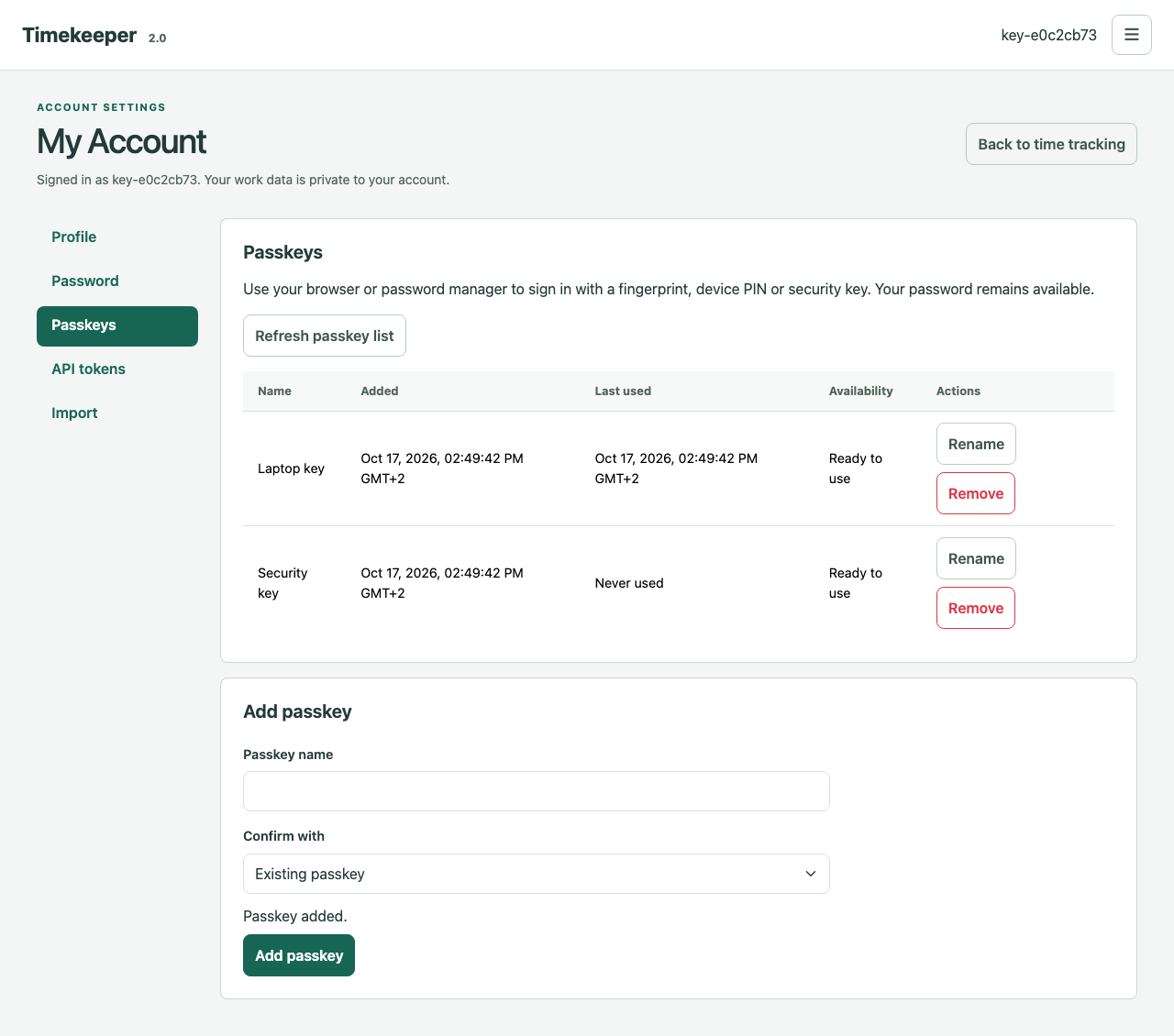
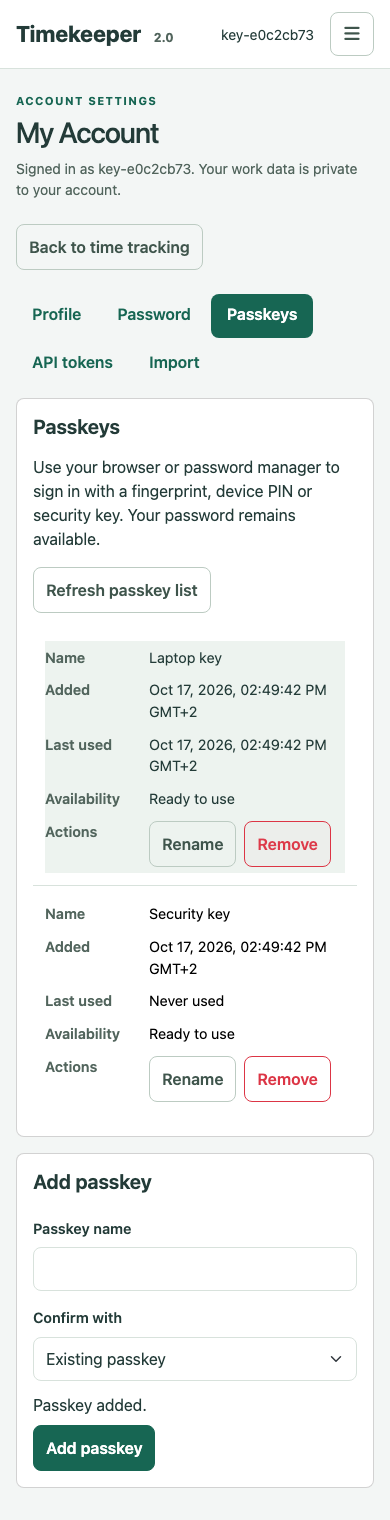
My Account → Passkeys lists user-named keys and creation/last-used times in the account time zone. Adding or removing a key requires fresh password or passkey proof. Removing the key used for the current session signs the user out. Keys enrolled for an earlier hostname are marked unavailable at the current RP; they remain visible until their owner removes them after testing a replacement. Token-derived sessions direct the user to account sign-in before enrollment. See account operations for configuration, recovery, hostname changes and protected backup behavior.
Font Awesome Free 7.3.1 supplies locally bundled icon fonts for larger tree controls and action buttons. Buttons retain accessible names and hover titles; fonts and their upstream license are included in the server distribution.
Track month view
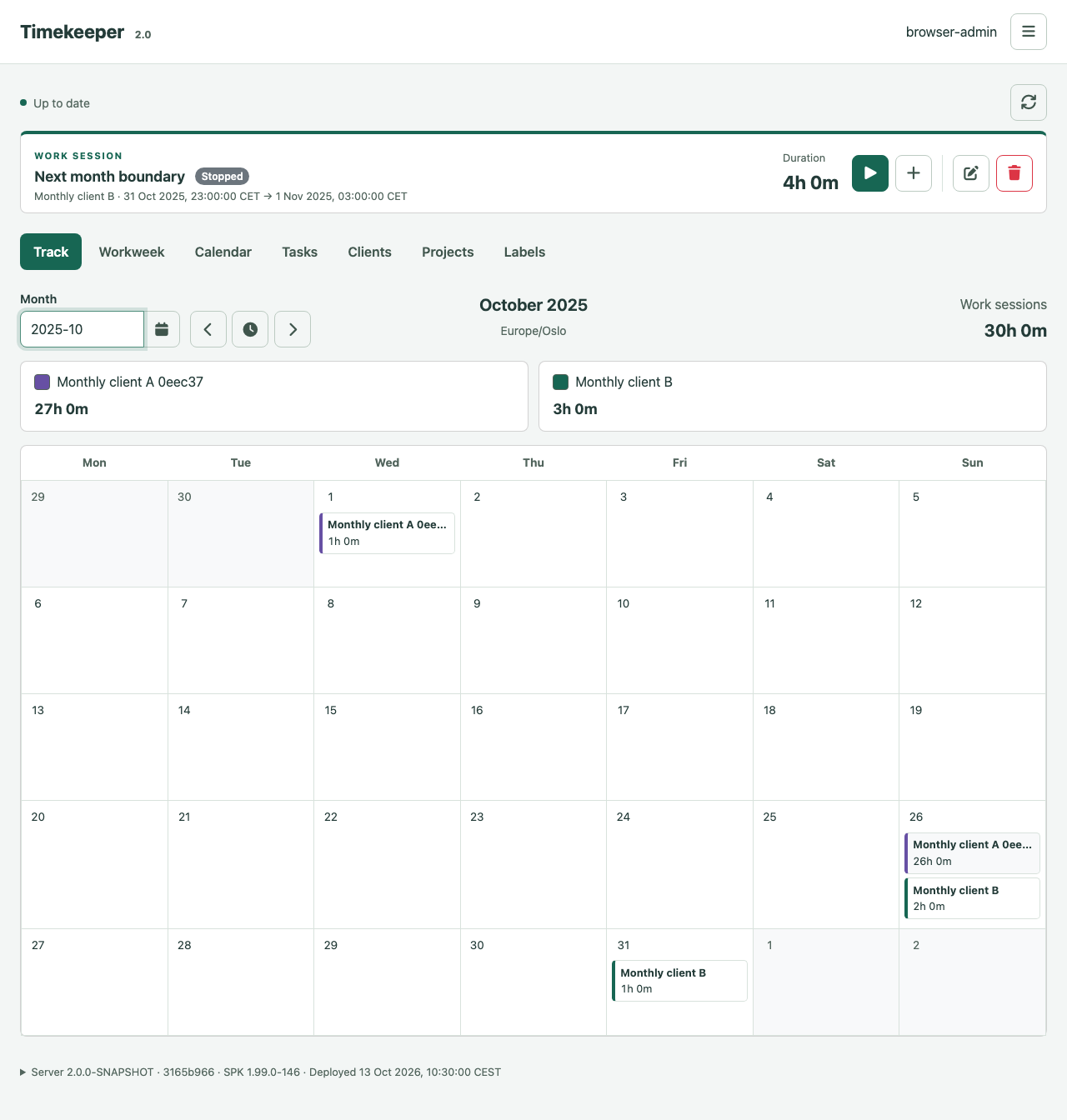
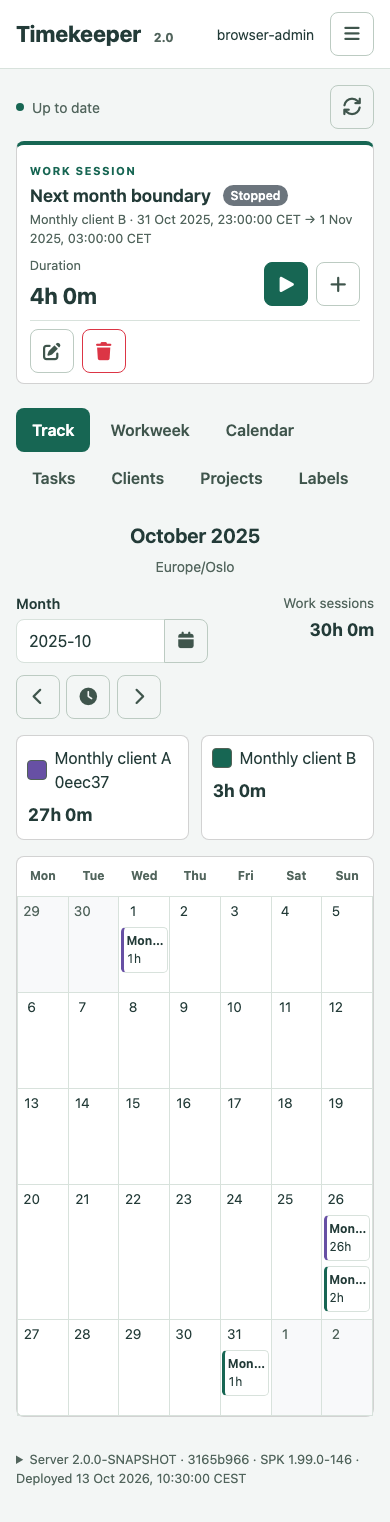
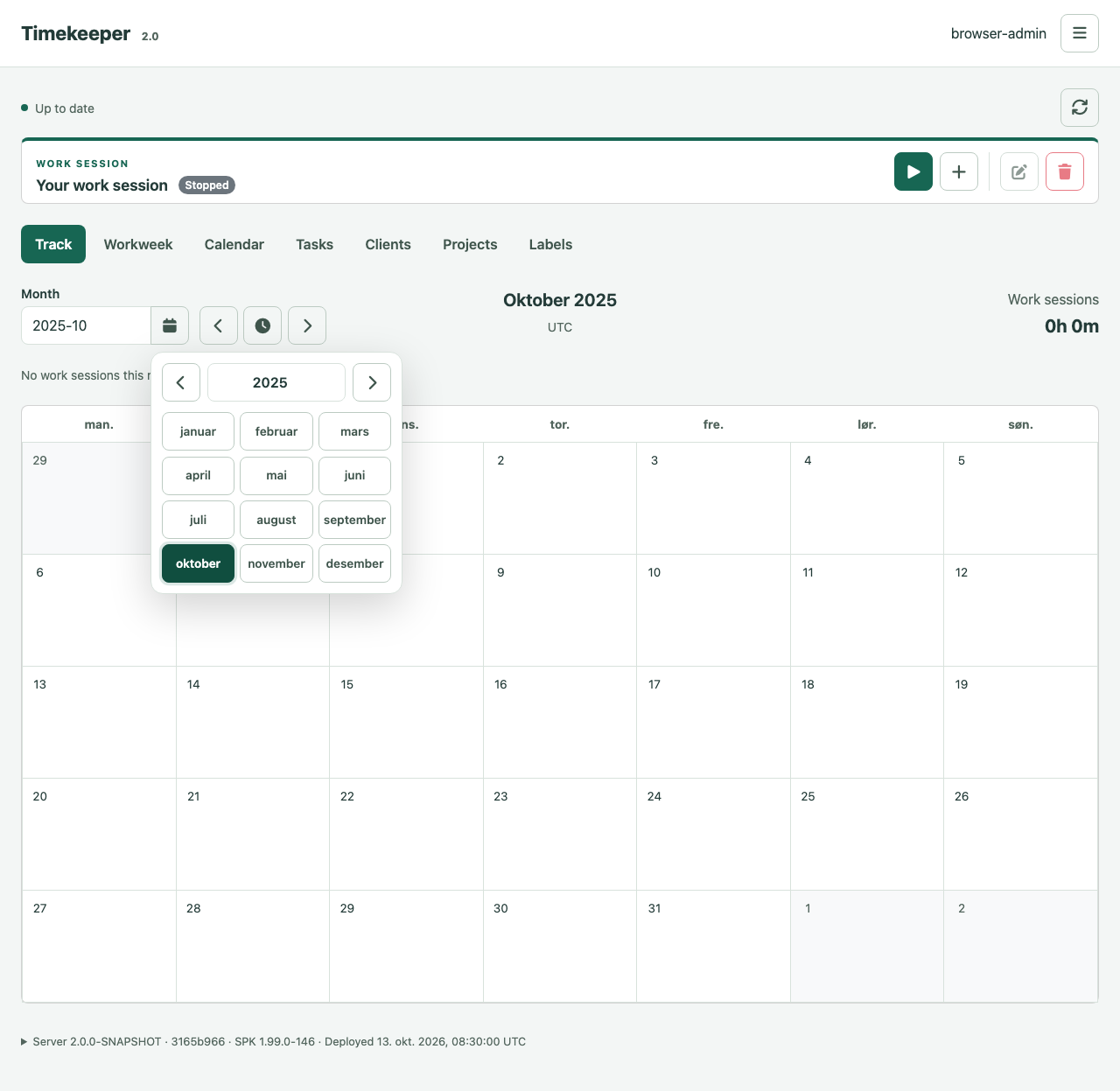
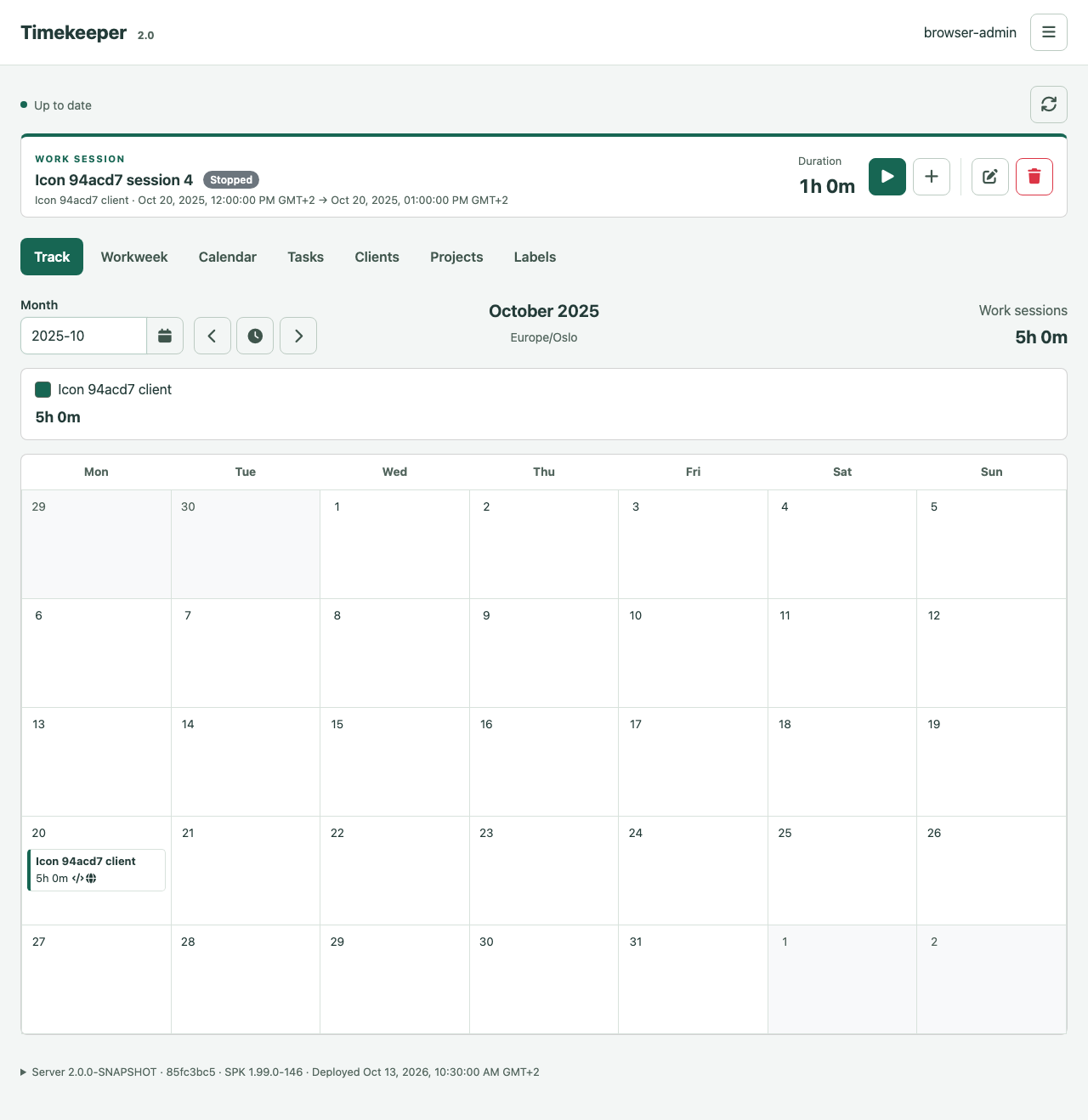
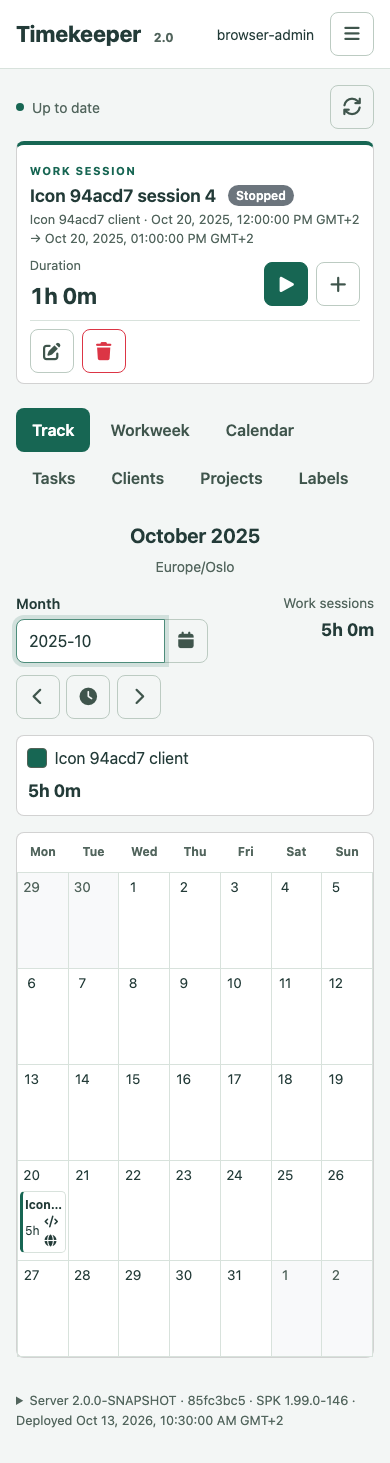
Track is the default workspace tab. Its Monday-to-Sunday month grid shows
one client-coloured summary per client and day, with recorded session hours per
client above it. Only clients with logged time in the selected month are shown.
Multiple sessions for the same client are combined. Use the controls on the left
to move between months or return to the current month. The calendar button inside
the Month selector opens a month/year picker; a month can also be entered as YYYY-MM.
On mobile, swipe left across the month to go forward or right to go back.
Workweek, Activities and Calendar also support swiping between weeks on their
headings or other non-scrolling areas. Wide tables and the calendar grid keep
their normal scrolling and editing gestures. Date controls remain available.
Hover over a daily client total to see its sessions, summaries, projects, labels,
local start/end times and durations in a tooltip. These details are also available
when viewing the account with read-only access.
Month boundaries and daily slices follow the account’s time zone, including DST;
running sessions use the server’s report time. Activity/task time is independent
of these totals. Month navigation does not alter recorded sessions. Click a daily client total to edit its work session. When several sessions
contribute to the total, choose one by its summary, project and local times.
Optional project icons appear to the right of each daily duration. The same icon
is shown once when several contributing projects use it; hover details retain
all project names. Sessions without an icon add no placeholder.
The same editor is available in Calendar and Workweek. Daily summaries remain
readable in read-only sessions, where editing is unavailable.
These views use synthetic records from tests/track.spec.js; the browser uses
Los Angeles time while the account uses Oslo time.
Themes
Choose Theme in the account menu to switch between Timekeeper (the default), Timekeeper Dark, Solarized Light, Solarized Dark, Nord and Dracula. The selection is saved on this browser and shared with other open Timekeeper tabs, including Administration. A saved theme also applies to sign-in and loads before the stylesheets to avoid flashing a light page. If browser storage is unavailable, theme selection still works for the current page.
Theme tokens cover forms, tables, calendar surfaces, dialogs and account pages.
Client colors remain the colors chosen for those clients. The palettes use
Solarized,
Nord and
Dracula, with text/accent contrast adjusted for
web controls. All styles and checkbox/radio assets are bundled locally.
tests/themes.spec.js checks WCAG A/AA contrast in every view, editors and account
settings, persistence, cross-tab updates and unavailable storage. It captures
desktop and mobile previews for every theme under server/web/test-results/.
Design baseline
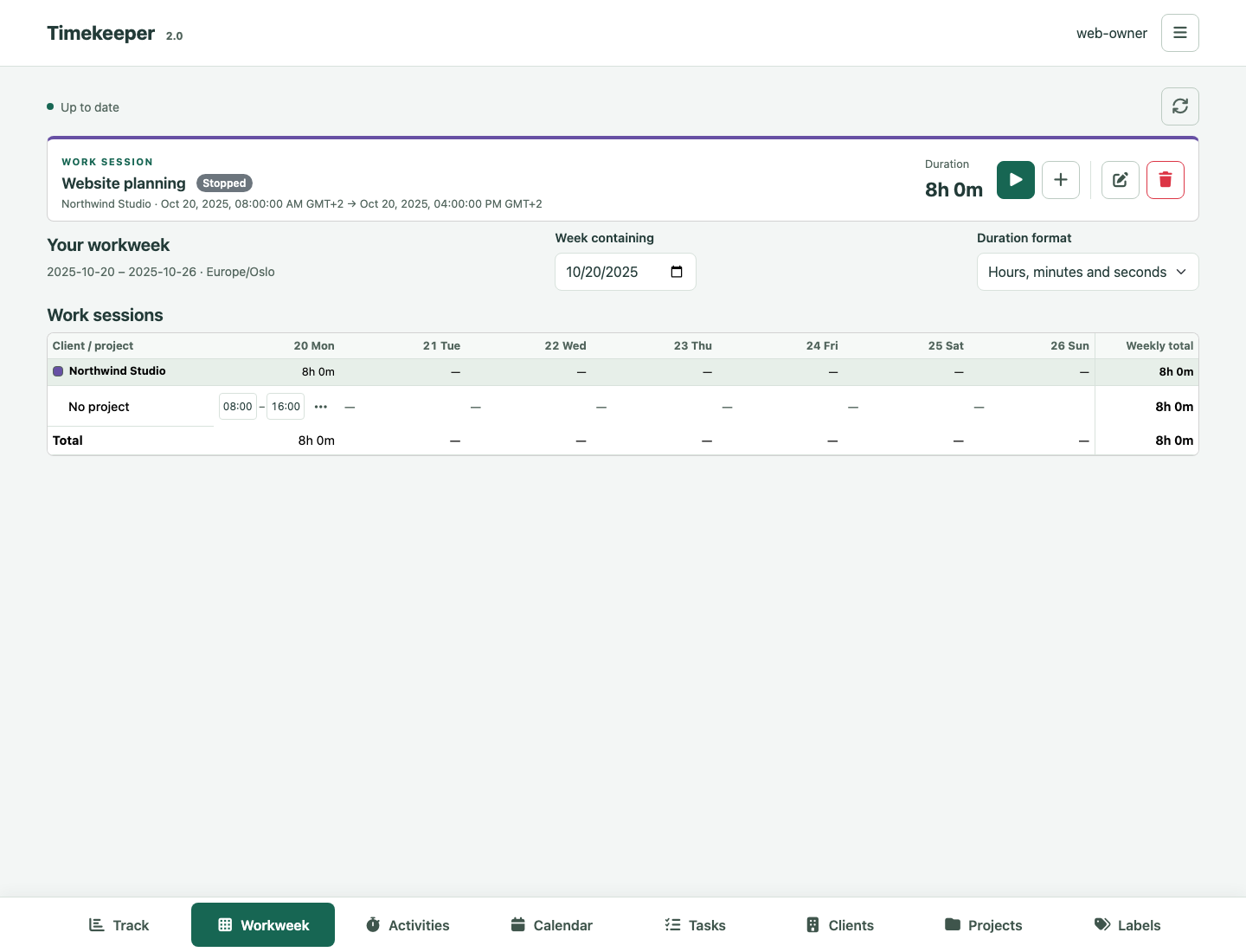
The main views share a fixed bottom navigation bar, with an icon for each view. Labels remain visible on wide screens and hide when space is limited; every button retains its accessible name and hover title. The bar stays within the device’s safe area, and content and Undo notifications leave room above it. Account settings and sign-in use their own navigation. Open About in the account menu to see the server version, SPK version, commit and build, deployment and start times. Close it with its button or Escape.
Bootstrap 5.3.8 supplies the shared buttons, forms, navigation, cards and tables.
The small application theme in style.css defines the green palette, typography,
spacing and visible keyboard focus. The work-session card establishes the baseline:
a client-color accent, summary, explicit running/stopped status, local times,
duration and consistently sized icon actions. Historical records and detailed
totals are available in Workweek, Activities and Calendar. Client color is always accompanied
by text.
The same controls apply to sign-in/setup/recovery, account management, activities,
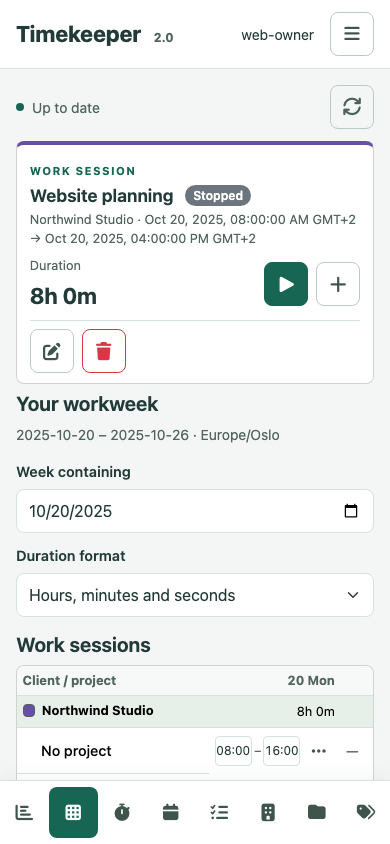
clients, projects, tasks and labels. Record tables become labelled cards on narrow
screens so actions stay in view; Workweek, Activities and Calendar retain their specialized
scrollable layouts. Calendar geometry is isolated in calendar.css.
These screenshots use synthetic records from tests/design.spec.js at 1440 and
390 pixels wide. The design tests also capture all workspace views and account,
sign-in and validation states under server/web/test-results/design-*.png.
Review those images after layout changes; automated accessibility checks cannot
replace visual review or keyboard testing.
Bootstrap’s exact npm version and integrity are pinned in package-lock.json.
Its compiled CSS and MIT license are committed under src/assets/bootstrap,
alongside the SVGs extracted from its data URLs. No Bootstrap JavaScript is needed:
native modal dialogs and the existing application navigation handle interactions.
The deployed client uses only same-origin files, including icon fonts, and retains
its img-src 'self' security policy. Maven packages these assets directly; it does
not require npm or an external CDN at runtime or when building the server.
After deliberately updating the pinned dependency, run:
cd server/web
npm ci --ignore-scripts
npm run vendor:bootstrap
npm run check:assets
Commit the regenerated CSS, SVGs and license together. CI checks that the bundled assets match the pinned dependency, then runs real-server browser tests with axe WCAG A/AA checks for all views at desktop and narrow widths. Those tests verify that no design asset triggers a third-party request or is blocked by CSP, and exercise keyboard focus, required fields and error recovery. Native browser validation and the API’s existing concurrency and authorization rules remain in use.
macOS WebKit reports inline-style CSP diagnostics for native select controls even on a plain page without application styles/scripts; Playwright screenshots also add inline-style diagnostics. The WebKit asset check excludes those inline reports while continuing to reject blocked design assets. Chromium checks every CSP event. The production security policy is unchanged. The macOS WebKit keyboard check uses Option-Shift-Tab to include buttons, matching Safari’s native keyboard navigation.
Projects, tasks, labels, activities and work sessions use API v1. Start/stop uses durable idempotency keys. Editors/deletion retain the original opaque ETag, including across full resynchronization, rather than upgrading a stale draft. Validation, permission, network and concurrency failures preserve drafts. Loss of authorization or a changed owner clears the account view and its drafts. An uncertain ordinary write requires cancel, refresh and review; uncertain start/stop offers explicit retry of the same frozen payload/key. Acknowledged saves remain successful when a subsequent refresh fails.
Workweek and Activities
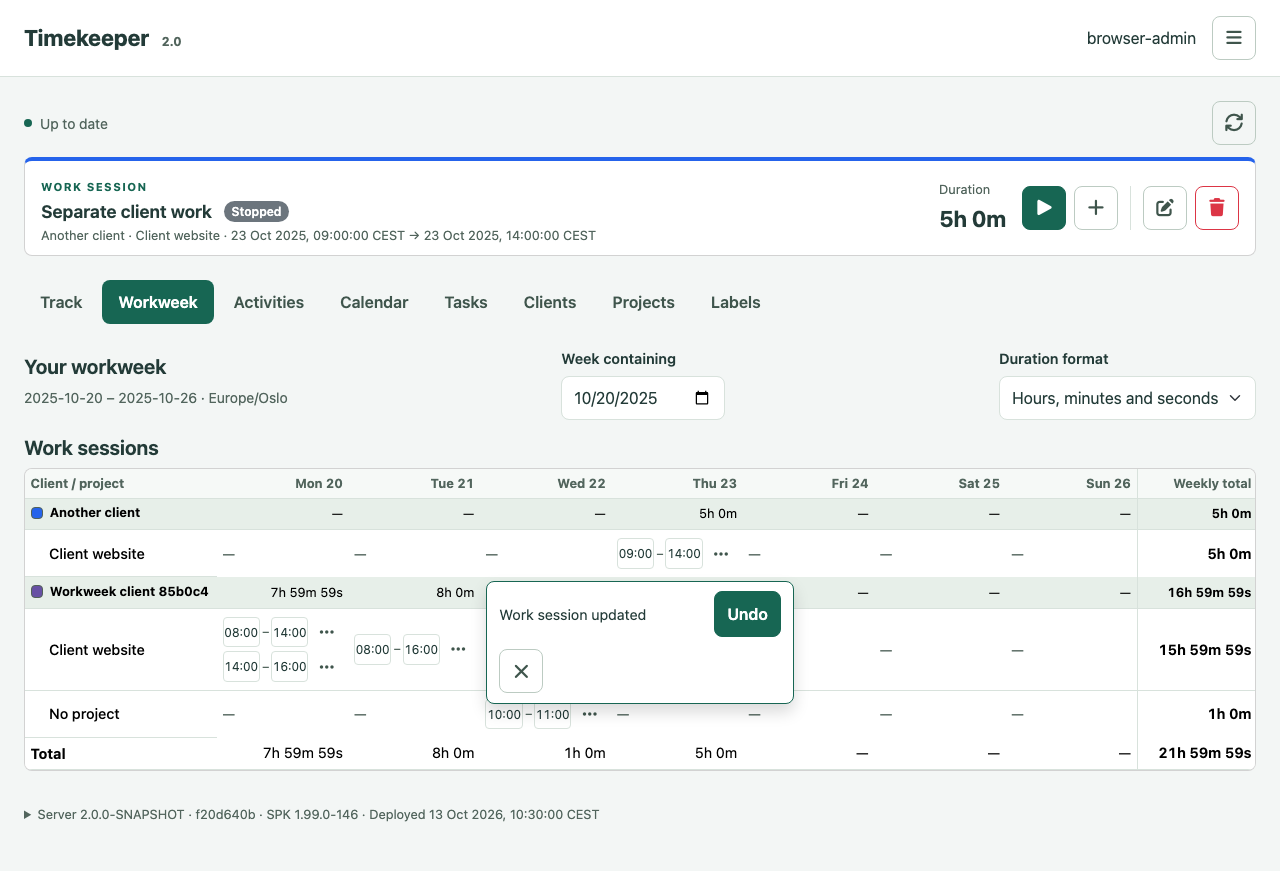
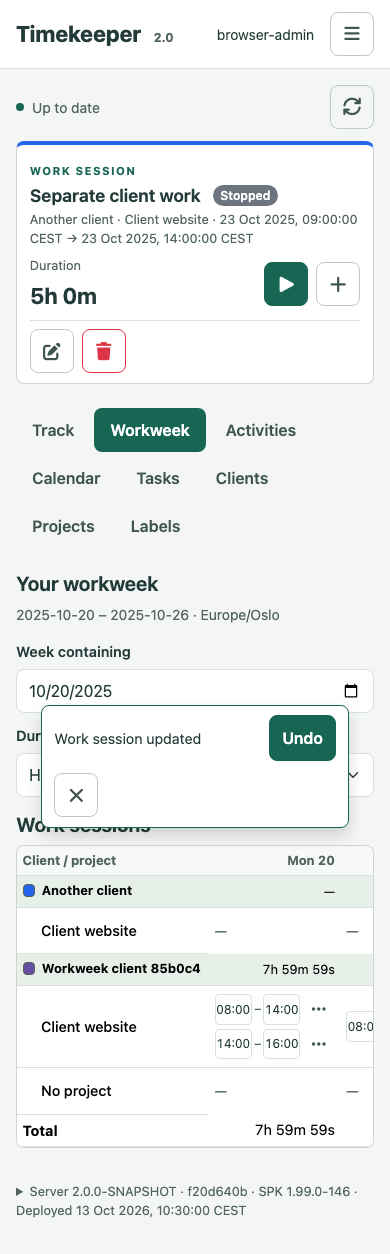
Reports use the account’s IANA time zone and the server’s exact daily/weekly totals. At sign-in, an untouched UTC profile (version zero) adopts the browser’s local IANA time zone. This is saved to the account so work sessions, activities, calendar boundaries and other clients use the same zone. An explicitly selected zone, including UTC, is retained when signing in from another device. Read-only tokens retain the existing account zone. Use Account menu → My Account → Profile → Time zone to change it explicitly. Workweek shows overlapping sessions in a compact Work sessions grid grouped by client and project. Each daily cell contains a start/end pair for every session; edit a time and press Enter or leave the pair to save, or Escape to cancel. The details menu shows summaries and labels and provides the full editor and delete action. Running sessions remain marked. Edits preserve unchanged endpoint precision and metadata; stale or uncertain saves keep the proposal for review instead of repeating the write.
Times use the account time zone. Sessions crossing midnight appear on each day; edit each endpoint on its actual day. An end of 24:00 means the next midnight. For repeated daylight-saving times, include an explicit offset such as 02:30+01:00. Daily/client/project totals are clipped at local-day and week boundaries and follow the selected clock/decimal format. The grid hides when no sessions overlap the selected week. Session time is separate from activity report totals.
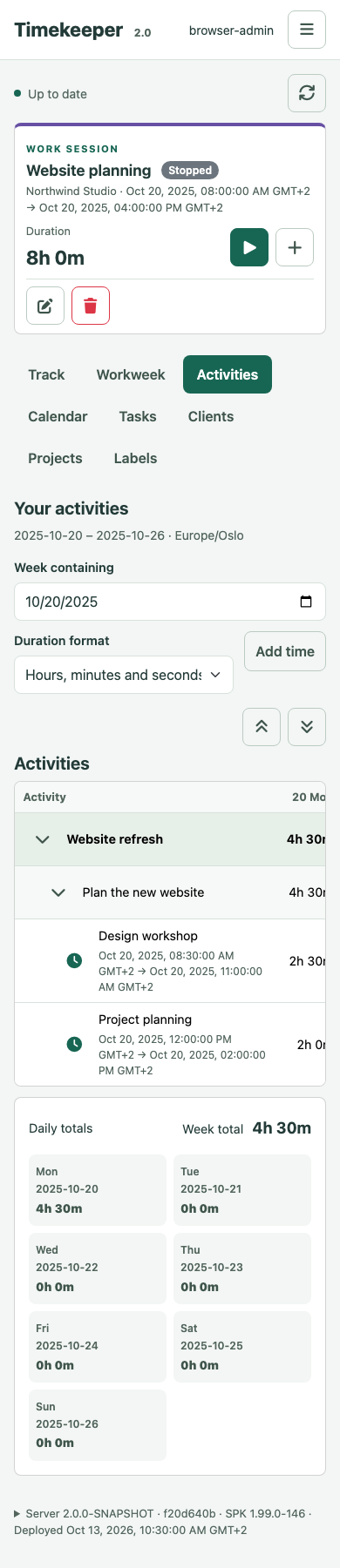
The Activities tab groups projects, tasks, subtasks and activities,
with seven daily duration columns, a weekly total column and expandable rows
like the Eclipse view. Its daily and weekly summaries report activity time.
Workweek and Activities share the selected week and duration format. Selecting
a day filters Activities without hiding work sessions in Workweek. Task totals include their subtasks. Hide activities
keeps the project/task outline visible; Show activities restores its rows.
Duration format chooses conventional time or decimal hours for this browser
session. Decimal hours use two places, rounded from each exact aggregate rather
than adding rounded daily cells. Display options do not change recorded times.
Daily and weekly summaries show whole seconds; stored times and calculations
retain nanoseconds. Linked task titles include their external ID (the Jira browse
key or GitHub issue number when available) and open the recorded HTTP/HTTPS issue
URL in a separate tab. Native task UUIDs are not display IDs.
Activity fields show and accept local dates and times in the account’s configured time zone, retaining up to nine fractional digits. Intervals across midnight are stored as separate activities in the account’s time zone, including manual entries. Live tracking continues into the next day with the same active identity and labels. Each day’s activity is edited or deleted separately; a rollover invalidates the earlier editor version. Day boundaries preserve exact time through daylight-saving changes. Start cannot be in the future, for either an ongoing or completed interval. The server rejects invalid creates, edits and imports without changing records. First click selects an activity; another click or Enter while selected opens its editor. Long polling loads consistent owner-scoped snapshots without replacing drafts. Label choices in open activity and tracking dialogs receive additions and renames from other clients while retaining their checked IDs and draft fields. A selected label deleted by another client stays visible as deleted until the user reviews it; saving cannot silently drop that reference. Offline reads reconnect with backoff and never replay writes. Sessions bind to the authenticated owner and reject live token owner reassignment.
Personal settings and independent user accounts
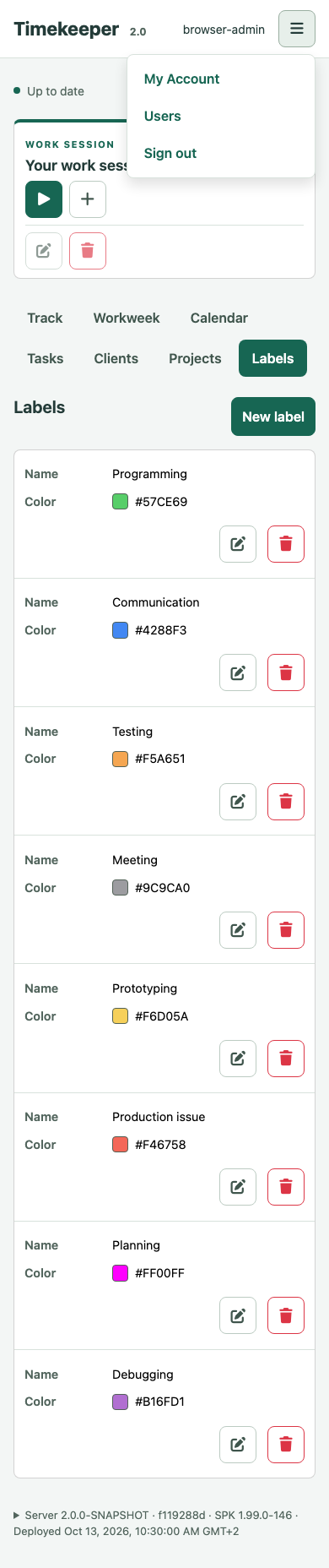
My Account is a dedicated page with Profile, Password, API tokens and Import sections. Open it from the header’s Account menu, which also contains Sign out and, for administrators with write access, Users. Time-zone settings are in Profile. The menu keeps the header on one row at phone widths and supports normal Tab navigation, Enter/Space, Escape and outside-click dismissal.
Safari’s Add to Home Screen uses the bundled Timekeeper clock icon through
apple-touch-icon metadata.
The icon is served before sign-in and matches the web favicon and Synology icon.
Adding the shortcut does not add offline access or change session behavior.
Navigation validation uses the checksum-verified server archive. On f119288,
70 Chromium tests passed (the SMTP-only case runs separately), and 69 HTTPS WebKit
tests passed with a loopback SMTP fixture. The two native touch-injection tests
require Chromium CDP and are skipped in WebKit; pointer/keyboard calendar checks
still run there. Coverage includes menu keyboard focus, 320px layouts, role-based
Users visibility, sign-out and opening an editor while a saved-zone report refresh
is deliberately held pending. Web unit tests: 50 passed.
It uses a side navigation on desktop and wrapping navigation on narrow screens.
Profile includes an optional display name and an explicit time-zone preference;
the device-zone shortcut never overwrites a saved choice without a save action.
New passwords require confirmation. Token lists show access, expiry, last use
and revocation state, with one-time secret copy and named revocation confirmation.
Administrators use the separate Users page to list, create and edit account identities. Editing opens a full page, with Back to users; the last enabled administrator is protected in the UI and by the server. This does not grant access to another account’s work data or introduce workspaces, members or invitations. Personal settings remain separate from other-user administration.
Import supports Toggl Track Detailed Report and Legacy CSV as work sessions (default) or activities, with explicit source-user and time-zone selection, explicit catalog mappings, duplicate review, durable bounded commits and whole-job Undo. A cancellable module worker handles parsing and batch planning. Navigation/sign-out disposes the worker and source preview; resuming uses server history and reselecting the unchanged file. No raw CSV or credentials are persisted in browser storage. See the import and Undo guide for limits and conflict handling.
Routes are bookmarkable fragments (#account/profile, #account/password,
#account/tokens, #account/import, #users, #users/new and #users/<encoded-owner>). Direct
access still requires the authenticated account and server-side permissions.
Browser Back and explicit return links share the draft guard. Writes reserve
the page until their result is known; uncertain writes require record review,
and stale edits keep their captured ETag and draft until explicitly reloaded.
Changing pages never stops timers. Sign-out invalidates pending account-page
loads and clears forms and token secrets. Passwords and bearer credentials are
never placed in routes or browser storage.
Work sessions
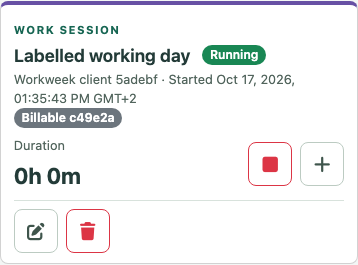
The compact Work Session card stays visible on every tracking tab. It shows the running session, or the most recent completed session, with its summary, client, local times and duration. Its timing/recording buttons sit beside the session tools, separated by a divider; on narrow screens the tools wrap below a horizontal divider. Tools target the session shown in the card and are disabled when no session exists or access is read-only. Workweek provides historical edit/delete actions, and Calendar provides historical editing. Opening a historical editor does not change the shared panel’s target. Start/stop controls remain independent of activity timers. Counters use server timestamps and elapsed browser time; when offline they freeze. The card contains no history selector, duplicate totals or activity list; historical records and detailed reports remain in Workweek, Activities and Calendar.
A work session is an independent interval for one client. Its tools are Edit and Delete. Create or edit activities in Activities or Calendar; task timers run independently. There are no session selectors or manual activity links.
Work sessions may have several labels selected in the start, record and edit
forms. The compact card shows their names; Workweek tooltips and the session
details menu include them. Calendar strips include them in their accessible
description without changing the client’s color.
Moving, resizing, stopping and copying a session preserve its labels without
changing any activity labels. JSON and CSV transfers remap labels into the
destination account. Older sessions and exports may omit labelIds; omitted
labels are preserved on edits, and an empty array explicitly clears them.

Reports derive context from that account’s activities overlapping the session, including running timers. Tracked time sums clipped intervals; covered time is their union. Unallocated time subtracts that union from session duration. Moving, resizing, stopping or deleting a session leaves activities unchanged. Sessions and activities can span midnight independently; activity day parts remain independent records. Work-session editors use native date/time pickers in the account’s time zone. Unchanged endpoints retain their exact stored precision; choosing a different time uses whole-second precision. Repeated clock times offer a first/second occurrence choice. Activity editor fields preserve nanoseconds and reject nonexistent or ambiguous local input. Open drafts retain their original time zone; stale saves preserve drafts and uncertain commands retry the same durable key.
Portable domain-v3 JSON/CSV includes clients and independent sessions. Imports
still accept v1/v2/v3 snapshots, ignoring retired activity workSessionId fields,
including references to sessions absent from an older export. Exports omit those
links. Native Eclipse CSV and portable server CSV remain distinct formats.
Automated verification
npm ci --ignore-scripts --prefix server/web
npm test --prefix server/web
cd server/web && npx playwright install --with-deps chromium && cd ../..
./mvnw -B -ntp -f server/pom.xml clean verify
python3 server/scripts/package_server.py --output server/target/distribution --commit "$(git rev-parse HEAD)"
python3 server/web/tests/acceptance.py --distribution server/target/distribution/timekeeper-server.zip
For WebKit, install its browser and use the existing HTTPS fixture so Secure session cookies work. Run from the repository root after packaging the server:
cd server/web && npx playwright install --with-deps webkit && cd ../..
python3 server/web/tests/acceptance.py --distribution server/target/distribution/timekeeper-server.zip --browser webkit --https
The HTTPS fixture requires openssl on PATH to create a temporary test
certificate. It uses a loopback reverse proxy and accepts that certificate only
in the test browser. To reproduce CI’s actual email-delivery checks with
Chromium, run:
python3 server/web/tests/acceptance.py --distribution server/target/distribution/timekeeper-server.zip --https --mail --grep 'first administrator|email recovery'
--mail requires --https and captures messages through a temporary loopback
SMTP fixture. Safari’s native macOS Password AutoFill UI still needs a manual
check.
For virtual WebAuthn registration, sign-in and fresh-proof tests, use Chromium
with the isolated HTTPS localhost RP:
python3 server/web/tests/acceptance.py --distribution server/target/distribution/timekeeper-server.zip --https --mail --passkeys
Signed protocol tests also run across two independent server containers sharing PostgreSQL. They cover cross-replica completion, one-use races, removal/recovery, protected restore and changes to backend addresses, public ports and RP hostnames:
python3 server/scripts/passkey_replica_acceptance.py --server-image timekeeper-server:test
python3 server/scripts/passkey_replica_acceptance.py --server-image timekeeper-server:test --postgres-image postgres:17.11-bookworm --output server/target/passkey-pg17-acceptance.json
These fixtures use synthetic keys; they do not establish Safari/Touch ID, security-key or cross-device interoperability. Record those checks separately over HTTPS, including a hostname/port cutover. Fixture receipts contain only scenario results; private keys and database dumps are temporary and never uploaded.
Packaging requires a clean committed tree. Browser acceptance launches the
checksum-verified distribution with temporary file storage and synthetic tokens,
then stops the JVM and removes private fixtures. Reports, screenshots and source
provenance go under server/web/test-results. Traces/videos are off because they could
retain authorization headers. CI’s Web job uses the same Server artifact as
Remote-Eclipse.
Browser tests cover core tracking, authorization/validation, peer synchronization,
stale drafts, lost committed replies, exact nanoseconds, autumn DST, mobile
layout, expandable project/task hierarchy, external issue links and remembered
credentials. The remote-client-tests Eclipse profile
also launches a real browser peer against its installed runtime’s server;
WEB-ECLIPSE.md records that bidirectional verification.
Final release installation remains a separate gate.
Calendar
The Calendar tab shows all seven days. Calendar, Workweek and Activities share the chosen week and the account’s time zone. Use the arrows, Today, or the date field to navigate. On smaller screens, scroll inside the calendar to see the remaining days and hours.
Drag across empty calendar space to preview a new work-session interval, in either direction and across days. Release opens the normal editor with the selected times; optionally enter a summary, review the interval and client, then save. The client from the last saved work-session editor is preselected during this sign-in. Before that, the selected, running or latest session supplies a valid client. Cancelled edits do not change this choice, and signing out or switching accounts clears it. Nothing is written until that save succeeds. Escape cancels an in-progress range, and cancelling the editor also leaves records unchanged. Selection follows the calendar’s 15-minute slots; a short drag covers at least one slot. Repeated clock times resolve to their separate instants, and shaded/nonexistent endpoint times cannot create a session.
On touchscreens, enable Select time range before dragging empty space. This explicit mode leaves ordinary touch scrolling available when it is off. It turns off when the range opens for review, when leaving Calendar, on disconnect and at sign-out. Existing work-session move/resize gestures continue to work. Keyboard users can select a day/time with the arrow keys and press Enter, or use Record work session, then enter the desired end time in the editor.
Strips represent work sessions, using the associated client’s color, session summary and elapsed duration. Small resize grips appear when hovering over a strip or focusing its controls with the keyboard; on touchscreens, select the strip to reveal them. Select a strip to see its full interval; double-click it or use Edit selected work session to edit. Drag the strip to move it between times or days, and drag its top or bottom handle to resize. Moves and resizes save directly without opening a dialog. A failed or uncertain save opens the editor with the proposed times for review; it never silently overwrites another client’s change. With a strip focused, Up/Down moves it by 15 minutes and Left/Right by one local day. On a resize handle, arrow keys adjust that endpoint. Moving preserves exact elapsed duration and fractional seconds. Sessions spanning midnight retain one identity while appearing in each affected day.
Use Copy work session and Paste work session, or Ctrl/Cmd+C and Ctrl/Cmd+V, to create a separate session. Select a day heading to retain the copied start clock time, or select a calendar slot to choose a new time. The paste editor lets you review the interval before saving. The client, interval and summary are copied; activities and task references are not. The copy buffer is private to the signed-in browser session and is cleared on sign-out. A running source keeps its blank end in the copy; finish the copy’s interval if another session is still running. Starts in the future remain invalid.
Task cards use the task’s title and issue link and list its activities. Separate gaps remain visible. Taskless activity cards and overlapping intervals are also shown. Tasks without recorded time remain available in the Tasks tab. Activity times and task/project assignments remain unchanged when a work session is moved, resized or copied. The activity editor warns when a new interval extends beyond its selected session; the API report retains exact tracked, covered and unallocated totals.
Repeated clock times have separate rows; shaded slots do not occur on a given day. A drag retains the original session snapshot and saves with its opaque version precondition. Peer edits, rejected changes and unknown save outcomes preserve the proposed interval for review instead of silently overwriting data or repeating an ordinary write.
Clients, projects and work sessions
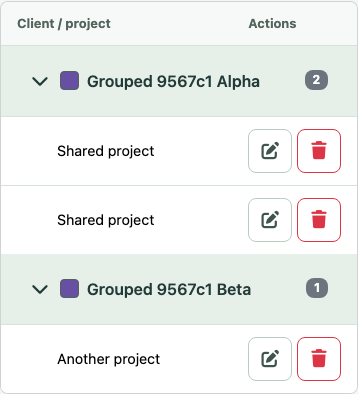
The Projects view groups projects beneath their client, with its color and project count. Use the client chevron to expand or collapse its projects. Collapse choices survive refreshes and tab changes. Create or edit a project to select an optional icon from the bundled picker, or choose None to remove it. Icons also appear beside project names in Workweek and beside daily durations in Track. They are retained in account downloads and JSON/CSV transfers.
The project icon picker offers over 1,400 bundled Font Awesome icons. Search by name or keyword, or choose More icons to browse. Filtering preserves the current selection; None removes an icon. Icons work offline.
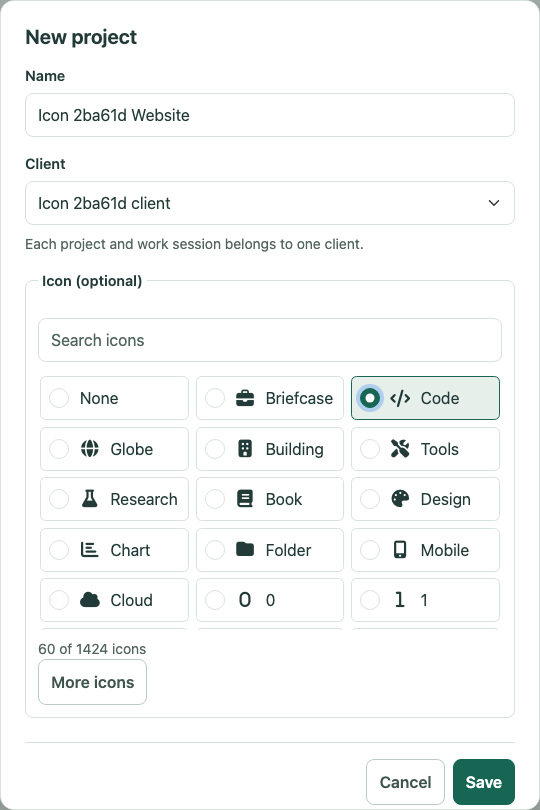
Use Clients to create, rename, recolor or delete a client. A client has a required name and hex color. Each project belongs to exactly one client; choose it in the project editor. A client may have many projects. Each work session also belongs to exactly one client and has an optional summary, with no separate title. Choose the client and optionally enter a summary when starting or recording a session. Summaries support multiple lines and up to 4,000 characters. The calendar uses the summary (or “Work session” when empty) and client color; light colors receive dark text and dark colors receive light text. Changing a client’s color updates all its sessions without editing them.
Create a client before creating your first project or work session. Clients in use by projects or sessions cannot be deleted; reassign or remove those records first. A project’s client and a session’s client can be changed independently. Existing activities and their times are retained when these associations change.
On server upgrade, projects and sessions without a client are assigned to General. Existing session titles move into Summary. If a title contains text not already at the start of the summary, it is placed before the existing notes, separated by a blank line. Existing descriptions, exact times, clients, projects and labels are retained; the migration is repeatable. General can be renamed and recolored like any other client. Import/export v3 preserves clients, project ownership, summaries and colors, and older archives with titles remain importable. Older v1/v2 imports receive General automatically.
Client management is a server/web feature. Eclipse project creation receives General on the server, and Eclipse project edits preserve its client. No client selection fields are added to Eclipse.
Toggl Track import
Prefer Legacy (User/End) CSV exports because they retain source client names independently of projects. Detailed Report (Member/Stop) exports are also supported and use the same review flow. A newer export without a Client column uses project-based suggestions instead; review and correct each client mapping before importing.
Each CSV row defaults to one continuous work session with a reviewed client and optional description in Summary. Activity import is an explicit alternative. Both modes share durable progress, duplicate review and whole-job Undo; sessions create no companion task/activity records and contribute to Track’s client totals. Source tags become reviewed work-session labels. Resuming an older import keeps its original mappings, and repeat imports preserve existing session edits.
Open My Account → Import for the source preview, catalog mappings and duplicate review. Import history supports resume, audit download and a single whole-job Undo with explicit edited-record decisions. See the user guide and verification report.
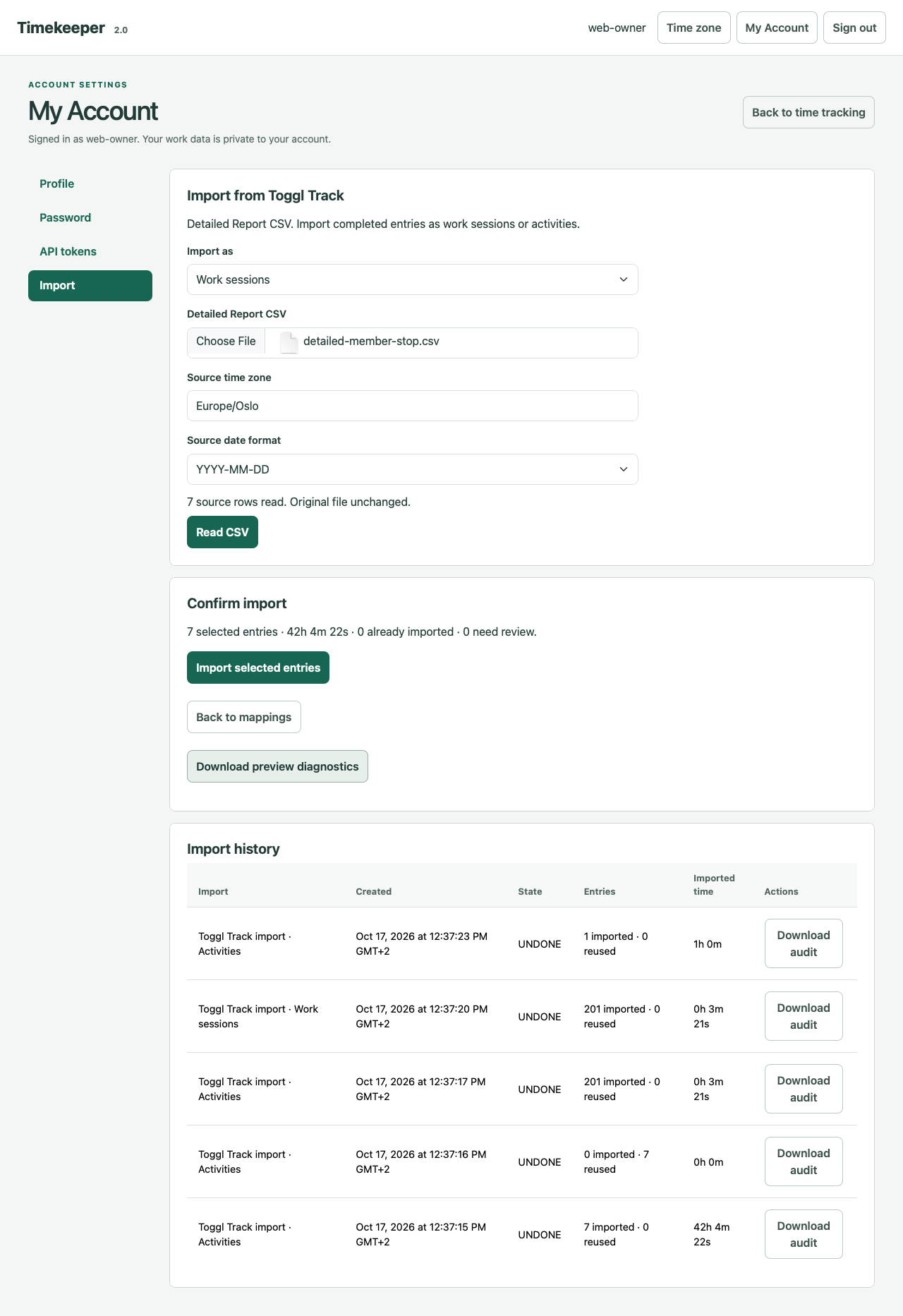

Work sessions support an optional project in start, record and edit dialogs. Selecting a project selects its client; changing to a different client clears the project. Calendar movement, resizing and copying retain the project. Toggl work-session imports review projects under their client without creating task activities.
Service administration uses /admin/ and /api/v1/admin/. General settings show
saved versus effective configuration; versioned saves require a real account
session and the administrator password. SMTP passwords are never prefilled or
returned, and administrator proof and SMTP credentials use separate browser
autocomplete sections. Changes activate on a coordinated restart; a stale replica
leaves readiness and cannot continue using its old policy.
Account data portability
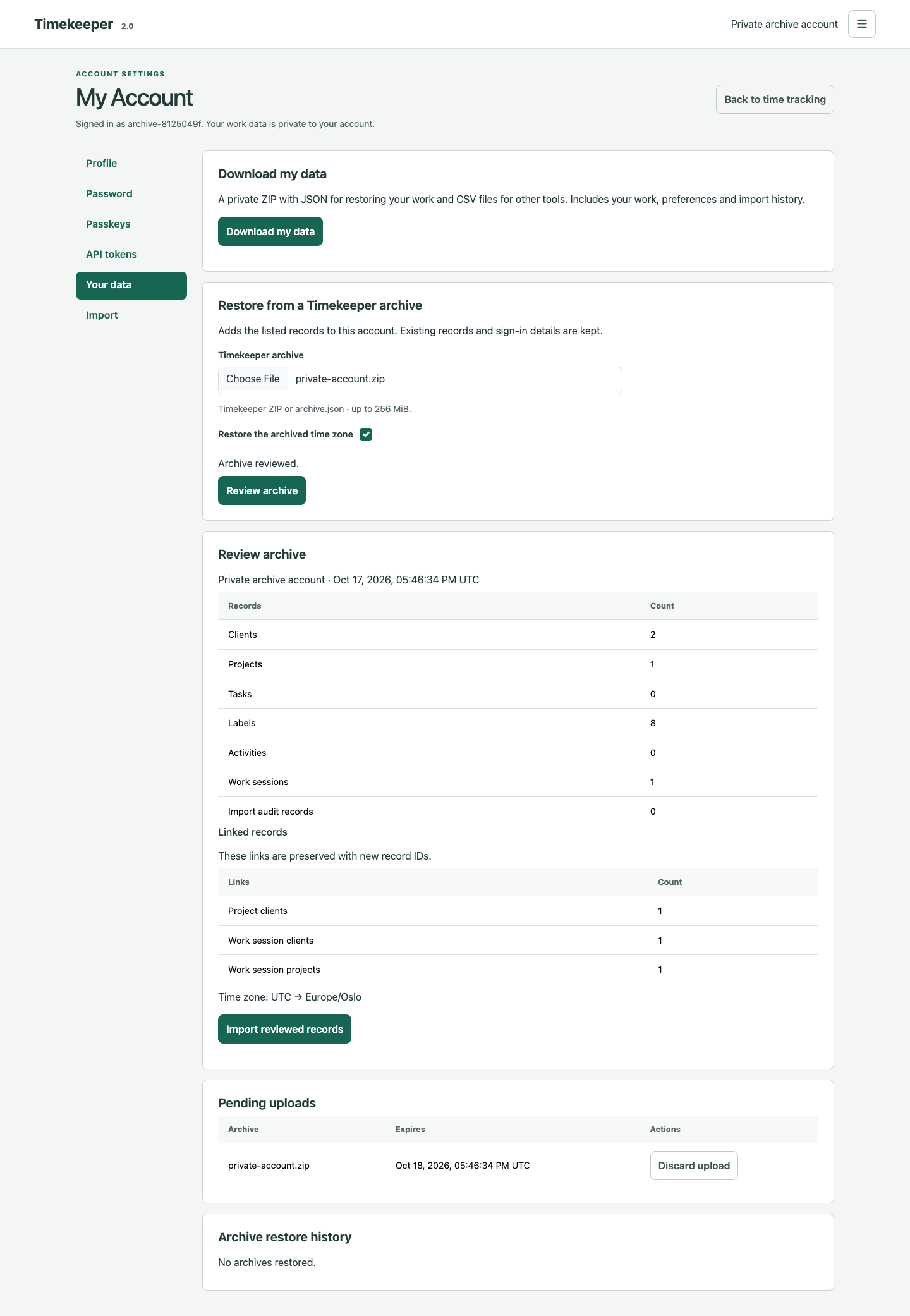
My Account → Your data downloads the signed-in account as a private ZIP with JSON and CSV. A reviewed restore shows record and link counts, then adds work with remapped relationships and an optional time-zone change; it preserves the target account’s identity, permissions and credentials. Interrupted uploads resume after file reselection, and an uncertain restore can be reconciled without duplicating records.
See the user guide for scope and limits, and the acceptance report for validation.

Undo work-session changes
After editing or deleting a work session, choose Undo in the notification within ten minutes. This includes calendar moves/resizes and Workweek time-cell edits. Undo restores exact times, client, project, labels and summary; activities remain independent. Only the latest acknowledged change is offered in the current browser session. Creation, timer start/stop and other record types are outside this first version.
If another edit or a removed destination makes restoration unsafe, Undo reports that conflict without overwriting current records. A lost response offers Retry undo, which checks the same command safely. Signing out clears the notification. No work snapshots are stored in browser storage.